
Calculate timesheet hours with breaks
From TaskSprig · How results work
Updated
Work hours are the time between a shift’s start and finish, minus unpaid breaks. A paid break stays inside worked time; do not add it a second time. This guide uses fictional dates, Clock time, no rounding and overtime off.
1. Calculate one day with a lunch break
09:00 to 17:00 is eight hours. Subtract a 30-minute unpaid lunch: 480 − 30 = 450 minutes, or 07:30 / 7.5 decimal hours.
- Choose the Simple hours template, then the Daily timesheet type and its date. In Enter hours worked, enter 09:00 as Start time and 17:00 as Finish time.
- Enter 30 in Unpaid break (minutes). The preview shows 7:30 / 7.50 hours before rounding. Choose Add to timesheet to record it.
- In Your period at a glance, open the date if you need an exception. Confirm it only once all work and leave for that date is included. Then use Downloads to preview and download the report. Optional pay and calculation rules are available in the tool's settings.
Unknown dates are not assumed to mean no work. A visible total can still be provisional until the report is reviewed.
For several workdays, choose Weekly and its start date, enter your usual hours once, select your days off and choose Fill period with these hours. Review the proposed dates before applying. Existing entries and leave stay in place. Click a date in Your period at a glance to change just that day; date coverage stays unconfirmed until you confirm it. To continue another day, use Save timesheet to download a private JSON file and Open saved timesheet to review and reload it. Add or clear any unsubmitted entry before saving. Start next week creates an empty seven-day report after a warning; the next-report action follows your chosen timesheet type. Save your current report first.
2. Build a 37.5-hour week
For Monday through Friday, repeat 09:00–17:00 with a 30-minute unpaid break. Choose a weekly period from 19 to 25 October 2026, select Saturday and Sunday as days off, enter those usual hours once and choose Fill period with these hours. Review its proposed working dates and apply. In Your period at a glance, check the entries and confirm recorded dates are complete only when all work and leave is included. Confirm the empty weekend dates as no work if that is correct for your records. Filling hours does not confirm attendance.
Empty dates on your selected weekends automatically show W — Weekend. Changing the weekend selection updates these labels; recorded work, leave and manually chosen codes stay intact. Confirm the dates only after checking them. For other days off, open the date and choose V — Vacation, L — Leave or H — Holiday. Add your own letters and meanings in Day codes and legend below the calendar. Existing labels are kept when confirming other empty dates. The report prints a legend for the codes used; codes do not create paid leave hours or replace the date confirmation.
| Dates | Shift | Unpaid break | Credited hours |
|---|---|---|---|
| Monday–Friday, 19–23 October | 09:00–17:00 each day | 30 minutes each day | 7.5 × 5 = 37.5 |
| Saturday–Sunday, 24–25 October | No work confirmed | 0 | 0 |
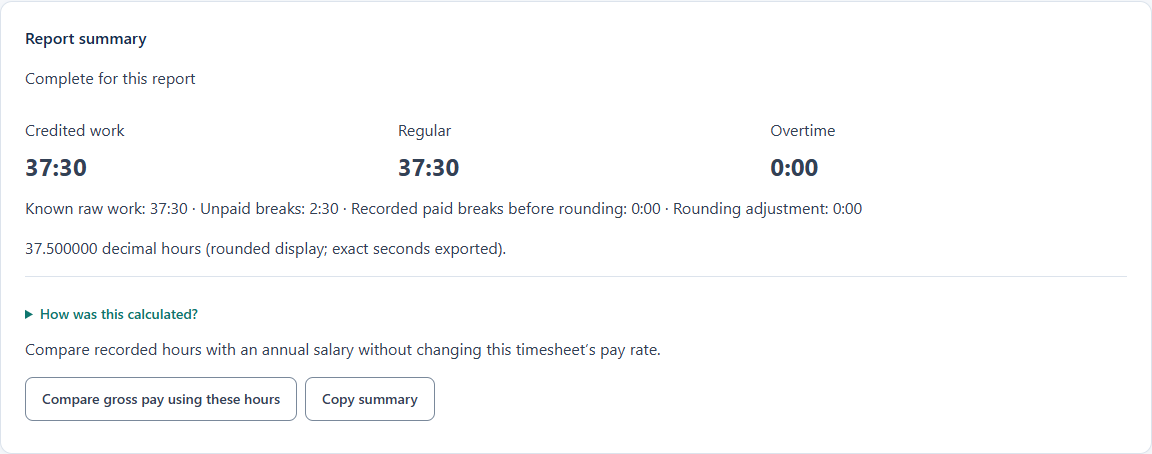
| Report total | 40 hours between punches | 2.5 hours | 37:30 / 37.5 |
Try the fictional weekly JSON example in Open saved timesheet, inspect the dates and settings, then choose Apply reviewed draft. Save your own draft first if replacing existing work. The example explicitly confirms weekdays complete and the weekend as no work.
3. Convert minutes to decimal hours
Divide minutes by 60. Thirty minutes is 0.5 hours, so 7:30 is 7.5, not 7.30. Similarly, 7:15 is 7.25 and 7:45 is 7.75. The calculator retains exact seconds; a short decimal display is rounded.
4. Enter an overnight shift
For 22:00 on 19 October to 06:00 on 20 October, set the end date to 20 October using Ends next day. With a timed unpaid break from 00:00 to 00:30 on 20 October, total worked time is 7.5 hours in Clock time. Include both dates in the report to include the whole shift.
Use Timed intervals when a break’s position matters across midnight, report boundaries or overtime thresholds. A duration alone may leave allocation unresolved. Clock time ignores daylight-saving changes; Elapsed time requires a confirmed zone and any repeated-time choices. Do not assume the two bases always give the same result.
5. Download your timesheet
Already keeping a spreadsheet? Open Import CSV, TSV, Excel or spreadsheet paste in the calculator. Check the suggested date, start and end columns, choose break units, and select one person if the log contains several. Review flagged rows and correct literal values before applying; source cells stay in the saved record. Use file dates to fit a historical report, or keep the current period when appending.
Download controls are available after choosing a template, without a separate review step. Any outstanding checks appear beside them. Confirm recorded dates together when all entries are included, and confirm empty dates separately if there was no work or leave. Missing entries are never treated as zero automatically. Use Edit entry for timed breaks, leave, overtime context or other unresolved checks.
Confirm each date as complete or explicitly no work. Resolve entry issues and any required earlier hours. Final PDF and XLSX downloads stay unavailable while required checks remain unresolved; an explicitly selected DRAFT export remains labelled provisional.
PDF reports match the selected timesheet type. The main PDF is compact, aiming for one readable page for normal daily, weekly and biweekly reports. Download detailed PDF report separately for source entries, workweek subtotals and calculation details. Long notes or busy reports may need more pages; draft PDFs retain unresolved source details. The first Excel tab follows the main PDF layout, including paper size and orientation. Other tabs retain exact seconds and source records.
Simple Hours keeps the report compact. Employee Timecard shows applicable regular, overtime and leave hours. Project Work Log adds optional project references and descriptions, with a project summary in the report. These choices keep the same calculation rules and do not classify hours as billable automatically.
Preview is optional: select Preview export format and choose Preview export, or download a completed report directly. PDF shows the actual pages; Excel previews show generated cell values across all worksheets. Download previewed file uses the same generated bytes. Edits clear the preview so you can review the updated result.
Overtime and estimated pay depend on your entered rules. This tool does not supply payroll-law, tax or employer-policy decisions. Your hours are not saved automatically; downloaded JSON drafts contain your inputs.
Next: convert gross salary to hourly pay, or read timesheet settings and import instructions.